
How to View Your Property's Vehicles
Your client portal account lets you see every vehicle registered at your property in real time — licence plates, permit status, and start/end dates. Three steps:
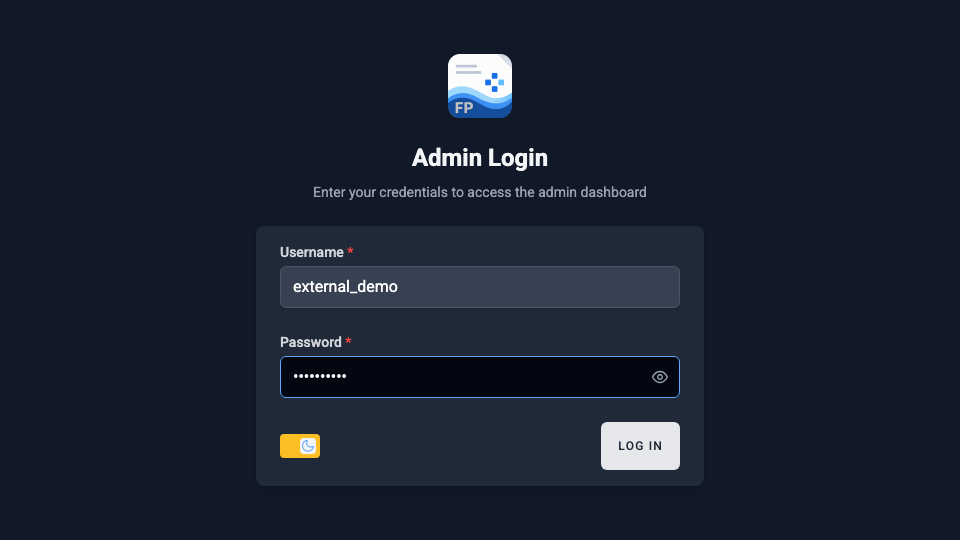
Step 1 — Log In
- Go to fieldpad.app/login on any phone or computer.
- Enter the username and password provided to you.
- Click Log In.
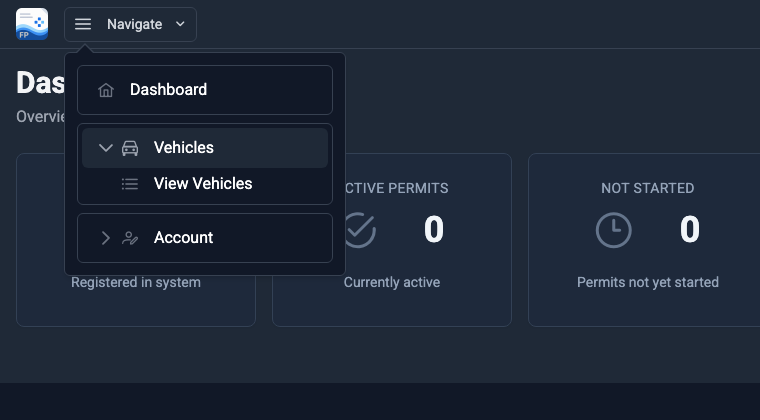
Step 2 — Open the Vehicles Menu
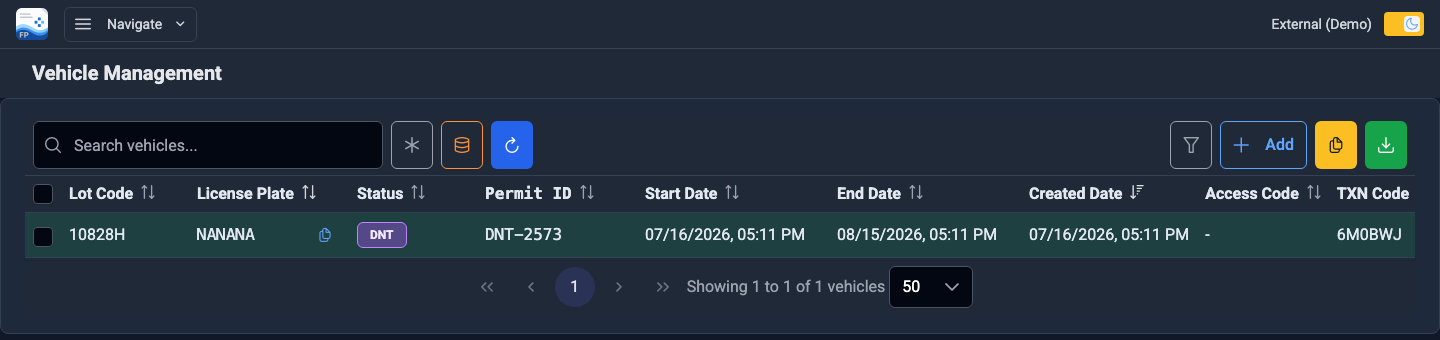
Step 3 — Review Your Vehicle List
- Every registered vehicle appears with its licence plate, permit ID, and start / end dates.
- Use the search box to find a specific plate.
- Click the green download button (top right) to export the list to a spreadsheet.
Questions? Contact us at 416-779-4545 or info@m6group.ca.